Syncs when apps are opened or closed
iOS
GitSync Open/Close Sync
The simplest way to keep your repo up to date on iOS is by syncing your repository when the app is opened and closed.
- Enable App Sync in Sync Settings (on by default)
- GitSync will automatically sync when you open or close the app
Sync on Other App Open/Close (via Shortcuts)
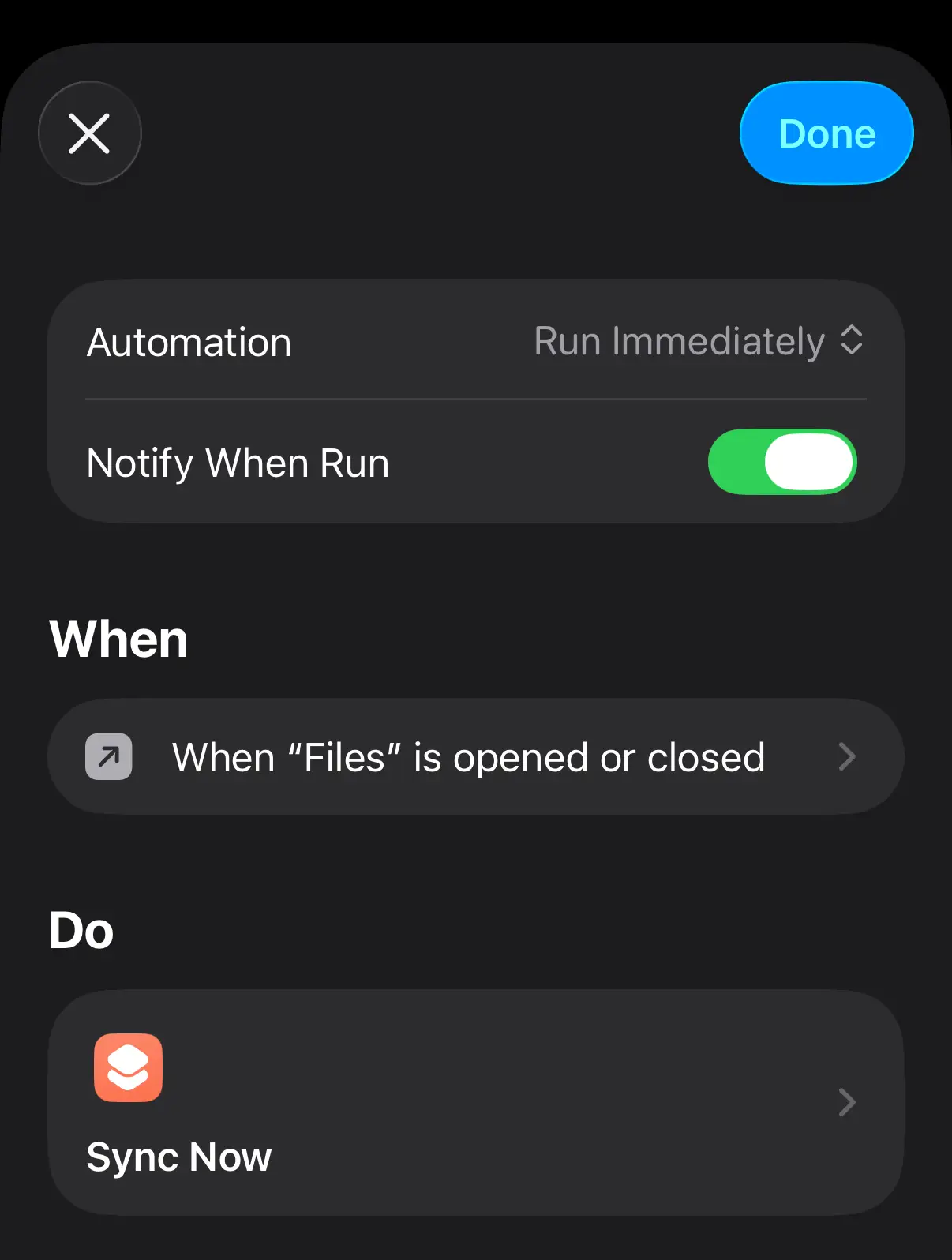
You can trigger a sync automatically when another app (e.g. Obsidian) is opened or closed using iOS Shortcuts automations.
This is the recommended approach for notes apps like Obsidian on iOS
1. Add Sync Now to your library
- Open the Shortcuts app
- Go to the Library tab
- Tap + in the top-right
- Find GitSync in the app list
- Tap Sync Now to add the shortcut to your library
You can now run Sync Now directly from your library to sync on demand, or continue below to trigger it automatically.
2. Create the automation
- In the Shortcuts app, go to the Automation tab
- Tap + → select App
- Select the app you want to trigger syncing (e.g. Obsidian)
- Choose Is Opened, Is Closed, or both
- Set to Run Immediately (no confirmation prompt)
- For the action, select Sync Now (now available from your library)
- Save the automation
"Sync Now" syncs the default/selected repository. No index parameter is needed.
Looking for advanced intent/URL scheme options?
See Custom Intent (advanced) for widget intents, deep links, and repo index parameters.
Android
Accessibility Service
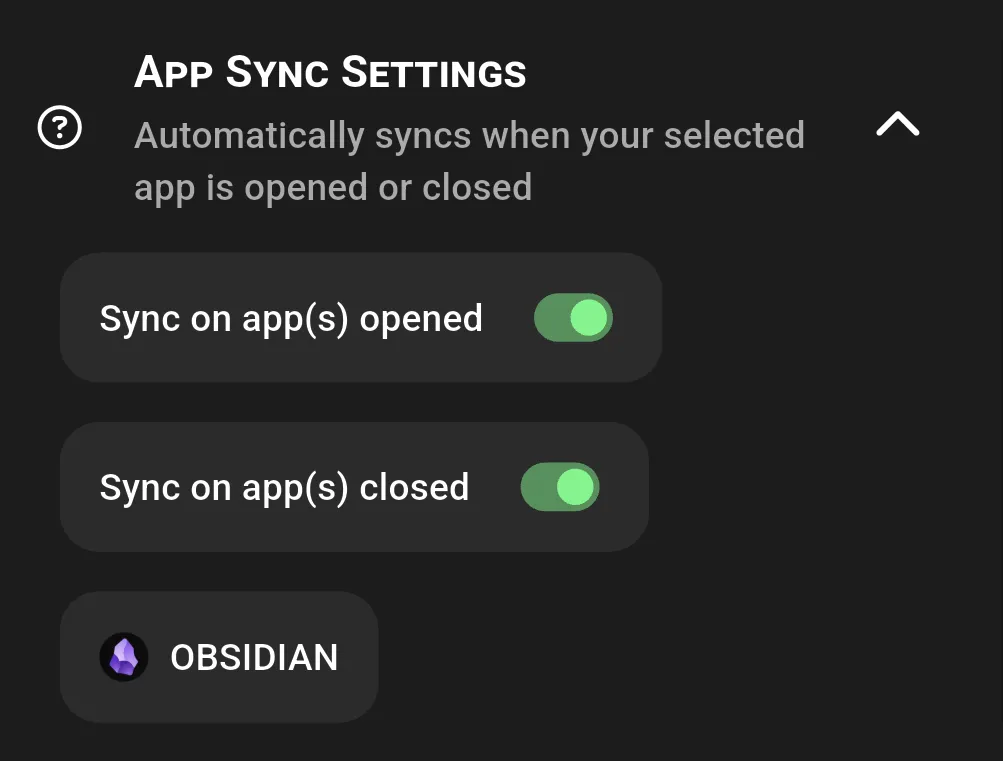
The built in option. GitSync watches for the selected app being opened or closed and syncs automatically.
- Enable the auto sync feature
- This will prompt you to enable the
Git Sync Accessibility Service - This service is used to watch for the selected app being opened and closed (ignoring keyboards)
- No data is collected or stored
- This will prompt you to enable the
- Select an application to watch
- Turn on/off sync on application opened or closed
For Open Source APK Users: Enable Restricted Settings
Apps installed from outside the Play Store (like the open source APK) are restricted by default. See Troubleshooting for detailed instructions.
To allow restricted settings (e.g., accessibility permissions):
- Go to Settings > Apps
- Tap “See all apps”
- Find and select Git Sync
- Tap the three-dot menu (•••) > App info
- Tap Permissions > Restricted settings
- Toggle “Allow restricted settings” to On
If you don’t see “Restricted settings”, your ROM may not support it. Some custom ROMs block this option.
The open source APK does not require Google Play Services and is fully compatible with privacy-focused ROMs.
via Tasker
If you’d rather not enable the accessibility service for GitSync, or your ROM blocks restricted settings, Tasker can trigger the same sync using a custom intent.
Tasker needs its own accessibility or usage access permission to detect app launches, so this moves the permission from GitSync to Tasker rather than removing it.
1. Create the profile
- Open Tasker and tap + on the Profiles tab
- Select Application
- Pick the app you want to trigger syncing (e.g. Obsidian) and go back
2. Create the entry task (app opened)
- When prompted for a task, choose New Task and leave the name blank
- Tap + and select System > Send Intent
- Fill in the fields:
- Action:
INTENT_SYNC - Package:
com.viscouspot.gitsync - Class:
com.viscouspot.gitsync.GitSyncService - Target:
Service
- Action:
- Go back to save the task
3. Create the exit task (app closed)
- Long-press the profile’s task and select Add Exit Task
- Repeat the same Send Intent action
Leave out the exit task if you only want to sync on open.
Optional extras
index:Nsyncs a specific repository container by 0-based index (see Multi-Repository Support)message:Your textsets the commit message for that syncAdd these in the Extra fields of the Send Intent action.
Because this uses the standard intent, the same approach works from any automation app that can send intents, not just Tasker.
Looking for advanced intent/URL scheme options?
See Custom Intent (advanced) for adb commands, widget intents, and repo index parameters.
See also: Scheduled Sync, Quick Sync, All Files Access (Android)