Repository Selection
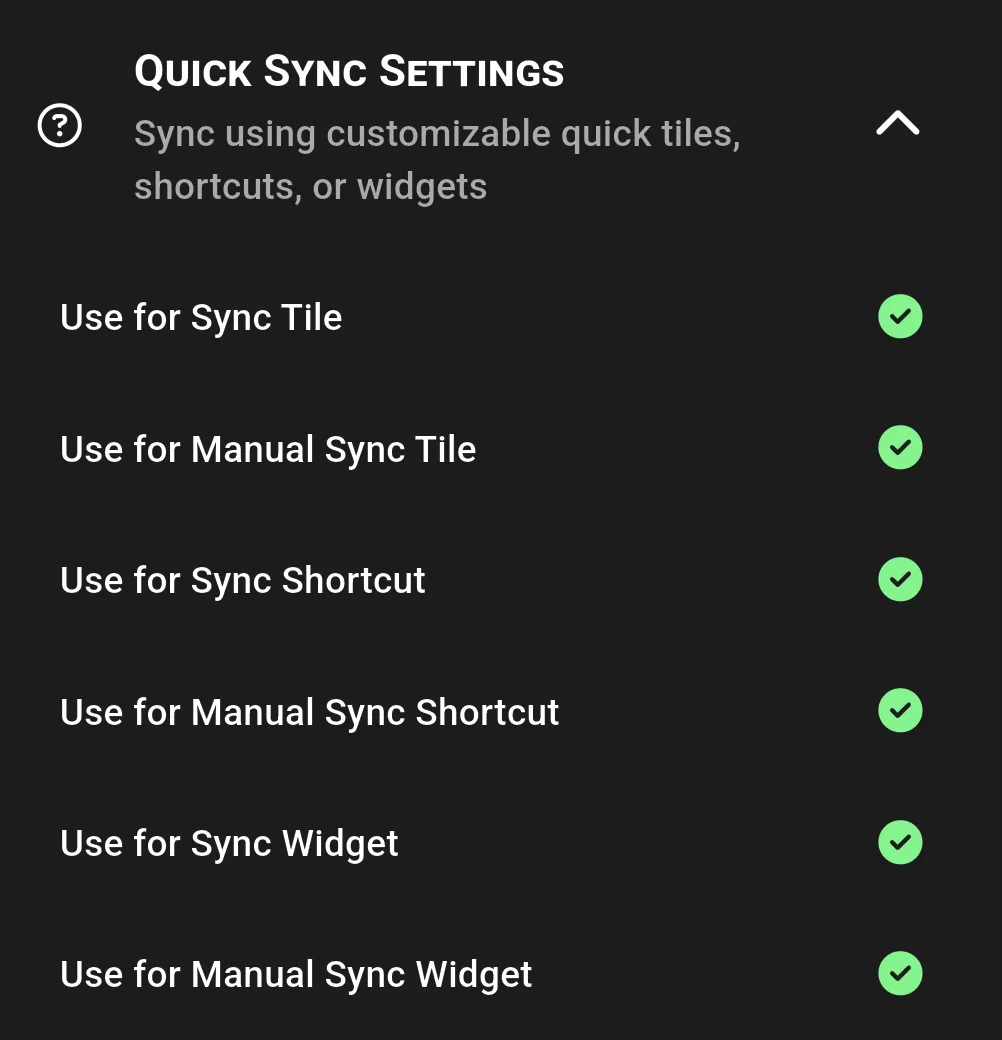
For each of these quick sync options, you can select one container/repository to use. This choice will dictate which container is used when the corresponding trigger occurs.
Sync Tile
Android-only
- Follow your OS-specific directions to add a quick tile.
- Select the quick tile labeled
Sync - GitSync. - Clicking this quick tile will trigger a standard sync, pulling changes from the remote repository and pushing local changes, mimicking the in-app sync button.
Manual Sync Tile
Android-only
- Follow your OS-specific directions to add a quick tile.
- Select the quick tile labeled
Manual Sync - GitSync. - Clicking this quick tile will open the manual sync dialog, allowing you to selectively commit and push file changes.
Sync Shortcut
- Create a mobile app shortcut using your device’s shortcut settings.
- Assign it to the
Sync - GitSyncaction. - Tapping this shortcut will execute a sync operation, updating your repository with the latest changes.
Manual Sync Shortcut
- Create a mobile app shortcut using your device’s shortcut settings.
- Assign it to the
Manual Sync - GitSyncaction. - Tapping this shortcut will launch the manual sync dialog for selective commits and pushes.
Sync Widget
- Add a sync widget to your home screen via your OS’s widget settings.
- Configure the widget to display
Sync - GitSync, allowing one-click syncing. - Tapping the widget will perform a standard sync operation.
Manual Sync Widget
- Add a manual sync widget to your home screen via your OS’s widget settings.
- Select the widget labeled
Manual Sync - GitSync. - Tapping this widget will open the manual sync dialog for targeted commits.
See also: App Sync, Custom Intent (advanced), Sync Mode